
Storage
Storage covers all the files your organization keeps in dAio: supporting documents, emissions reports, logo, attachments and exports. Each plan includes a volume of permanent, secure storage; managing it well guarantees the continuity of your imports and the traceability of your environmental data.
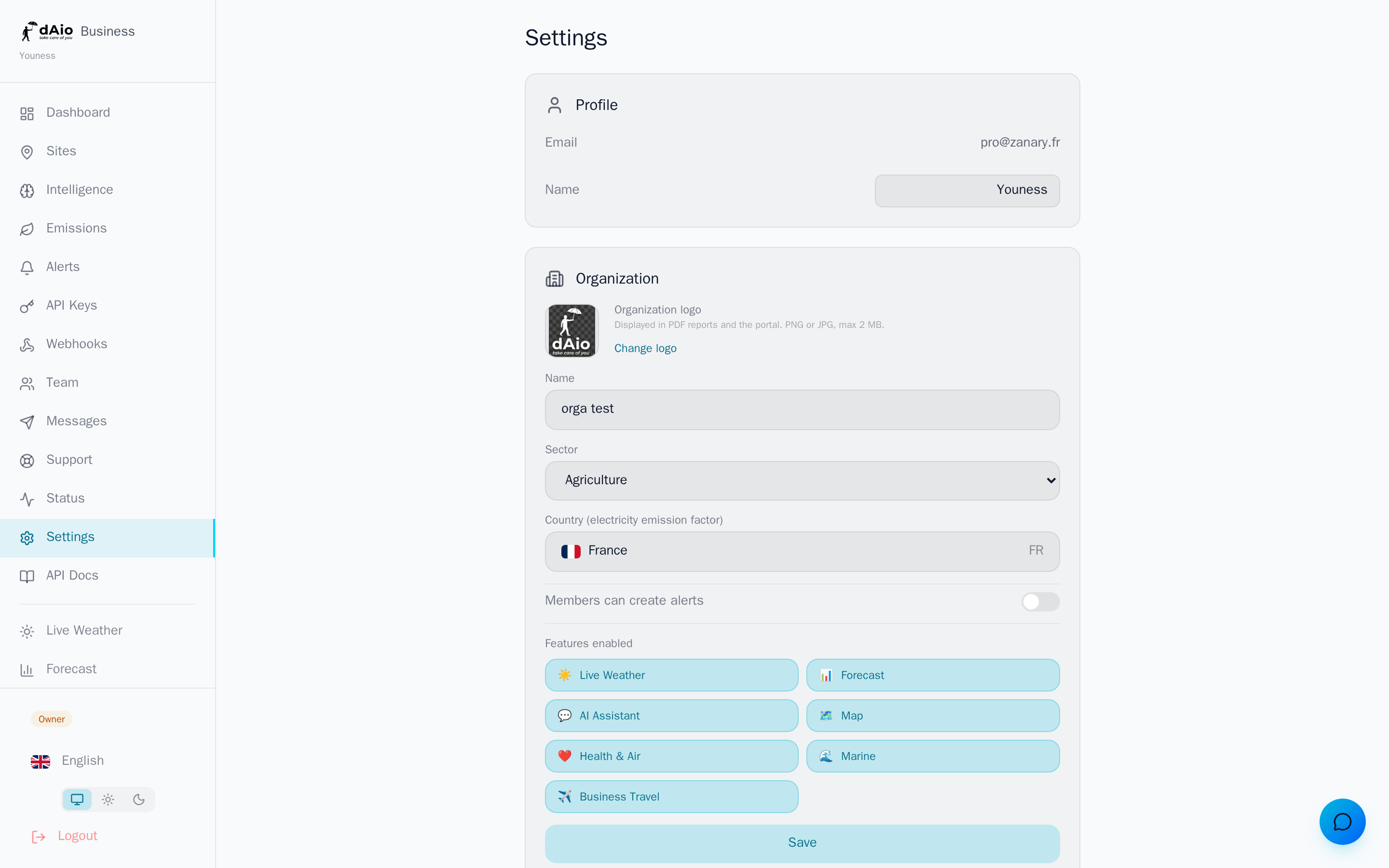
You track your usage in real time from Settings > Usage & quotas > Storage, where a progress bar shows the space used against your quota.
Tip: monitor your storage just like your other quotas. A saturated space blocks new imports — anticipate rather than suffer the interruption at the worst possible moment.
What consumes storage
Every file attached to your organization counts toward your quota:
| File type | Source |
|---|---|
| Supporting documents | Datasheets, invoices, PDFs imported into Emissions |
| Emissions reports | PDF reports generated and exported |
| Organization logo | Image shown in reports and the portal |
| Attachments | Files added to support tickets |
| Data exports | JSON or CSV archives generated on demand |
The quota is shared across the organization: all seats draw from the same volume.
Quotas by plan
The included volume depends on your subscription:
| Plan | Included storage |
|---|---|
| Solo | 2 GB |
| Team | 10 GB |
| Enterprise | 50 GB |
Need more space? Upgrade to a higher plan or contact us for a tailored Enterprise offer.
Tracking your usage
- Open Settings.
- Scroll down to the Usage & quotas section.
- Locate the Storage row: the bar shows the space used and the total quota (for example
3.2 GB / 10 GB).
The bar changes color depending on the fill level: green for normal use, orange as you approach the limit, red when space is nearly saturated.
Tip: regularly export your important reports locally. You keep a reference copy while freeing up your online storage.
Automatic alerts
dAio warns you before saturation becomes a blocker:
| Threshold | Behavior |
|---|---|
| 80% | Warning notification |
| 95% | Urgent notification with an upgrade suggestion |
| 100% | Imports blocked, add features limited |
Freeing up space
When you approach your quota, several levers let you recover space:
- Delete obsolete documents from Emissions > Documents.
- Remove old reports that are drafts or no longer useful.
- Archive large files locally before removing them from dAio.
- Clean up attachments from closed support tickets.
Caution: deleting a file is permanent. Make sure you have a local copy before erasing one you need to keep for regulatory obligations.
Plan change and retention
When downgrading to a lower quota:
- No existing file is automatically deleted.
- If your usage exceeds the new quota, new imports are blocked until you go back below the limit.
- Free up space manually to restore the ability to import.
When canceling your subscription:
- Your files are kept for 30 days after the subscription ends.
- After that period, all data is permanently deleted.
Caution: export your data and reports before any cancellation. Use the GDPR export from Settings > Data & account to retrieve a complete archive.
Best practices
- Anticipate saturation: don't let your storage stay above 80% for long, or your imports will be blocked.
- Name your documents clearly before importing them to find and sort them easily.
- Archive locally the validated reports and old supporting documents you no longer need to consult online.
- Clean up regularly: delete drafts, expired exports and unnecessary attachments.
- Keep a reference copy of any document required for your regulatory obligations before deleting it.
Tip: pair storage management with the tracking of your emissions and your subscription to keep a clear and compliant organization.