
Alerts — Overview
Alerts turn weather into decisions. dAio Business continuously monitors each of your sites and warns you the moment an environmental condition likely to affect your operations is detected — or anticipated. You no longer wait for the event to happen: you act ahead of it.
An alert ties together three elements: a site to monitor, one or more conditions (thresholds on weather and environmental parameters), and the channels through which the notification reaches you. As long as no condition is met, the alert stays silent; the instant one is, dAio notifies you.
Tip: start small. One or two well-targeted alerts on your most exposed sites are worth more than a dozen redundant ones that end up being ignored.
How an alert triggers
Every alert is attached to a single site. dAio evaluates its conditions against the location's real-time weather data and forecasts. When the conditions are met — for example "gusts ≥ 60 km/h" or "temperature ≤ 0 °C" — the alert fires and the notification goes out on the chosen channels.
Several conditions can be combined with AND logic (all conditions must be true) or OR logic (any one is enough). This gives you full control over how precisely the alert triggers.
Modes: hazard or opportunity
Every alert carries a mode that defines its intent and its color code in the interface:
| Mode | Color | Meaning |
|---|---|---|
| Negative (hazard) | Red ⚠ | A condition that puts your operations at risk (frost, high winds, heatwave, black ice…). |
| Positive (opportunity) | Green ✓ | A favorable window to seize (installation slot, solar peak, ideal intervention conditions…). |
The mode appears everywhere: the status dot in the list, the badge in the editor. It lets you tell at a glance what calls for a protective measure from what opens a window for action.
Three ways to create an alert
Click New alert in the top right to open the library. Three complementary approaches are offered:
| Type | For whom | Principle |
|---|---|---|
| From a template | Quick start | Over a hundred ready-made templates by sector (construction, agriculture, logistics, local government, energy, events, retail…), with thresholds already optimized. See Customize an alert. |
| Custom | Precise needs | Build your conditions parameter by parameter, with operators and AND/OR logic. See Custom alert. |
| By AI | The simplest | Describe the alert in plain language ("let me know when the wind exceeds 40 km/h") and the AI generates the conditions. See AI alert. |
Tip: the templates on offer are sorted by your organization's industry. The first tab almost always matches your core line of business.
Settings common to every alert
Whatever the creation method, every alert is configured around the same settings.
Monitored site
Select the relevant location from your sites. An alert monitors only one site at a time: to cover several locations with the same rule, duplicate the alert onto each.
Conditions and thresholds
Adjust the trigger values (temperature, gusts, precipitation, UV index, visibility, humidity…). The available operators are ≥, ≤, >, <, =, ≠ and "between" (value range).
Notification channels
Choose how you are warned. Four channels are available:
| Channel | Detail |
|---|---|
| Push | Notification on the mobile app and the browser. |
| Detailed message in your inbox. | |
| SMS | Text message on mobile. Requires a verified number. |
| WhatsApp message. Requires a verified number. |
Warning: the SMS and WhatsApp channels require a verified phone number and consume messaging credits. Push and email remain unlimited.
Time scheduling
By default, an alert is active 24/7. Enable the time window to receive notifications only when they matter: set a start time, an end time, and the days of the week concerned. Ideal for aligning alerts with your operating hours and avoiding pointless overnight notifications.
Cooldown (delay between two alerts)
The cooldown sets the minimum time between two notifications from the same alert, to keep you from being overwhelmed when a condition persists. The available values are 2, 6, 12, 24 or 48 hours.
Tip: a short cooldown (2–6 h) suits fast-changing conditions; a long cooldown (24–48 h) suits sustained episodes such as a heatwave or a cold snap.
Predictive alerts: up to 7 days ahead
This is the heart of dAio Business's value. Rather than reacting to the present, you can trigger an alert on the forecast: dAio warns you when the condition is anticipated within a given horizon, leaving you time to organize a response.
The horizon is set in steps: real time, 6 h, 12 h, 1 day, 2 days, 3 days, 5 days, up to 7 days. The further out the horizon, the lower the forecast reliability — dAio shows a reliability index for each step:
| Horizon | Indicative reliability |
|---|---|
| Real time | 95 % |
| 6 h | 93 % |
| 12 h | 91 % |
| 1 day (24 h) | 86 % |
| 2 days (48 h) | 78 % |
| 3 days (72 h) | 71 % |
| 5 days (120 h) | 59 % |
| 7 days (168 h) | 49 % |
Tip: for decisions with high logistical stakes (mobilizing a team, securing a worksite, rescheduling a delivery), favor a horizon of 24 to 72 h, which offers the best trade-off between lead time and reliability.
The predictive range available depends on your subscription plan (Solo, Team, Enterprise). Higher plans unlock the longest horizons.
Managing your alerts
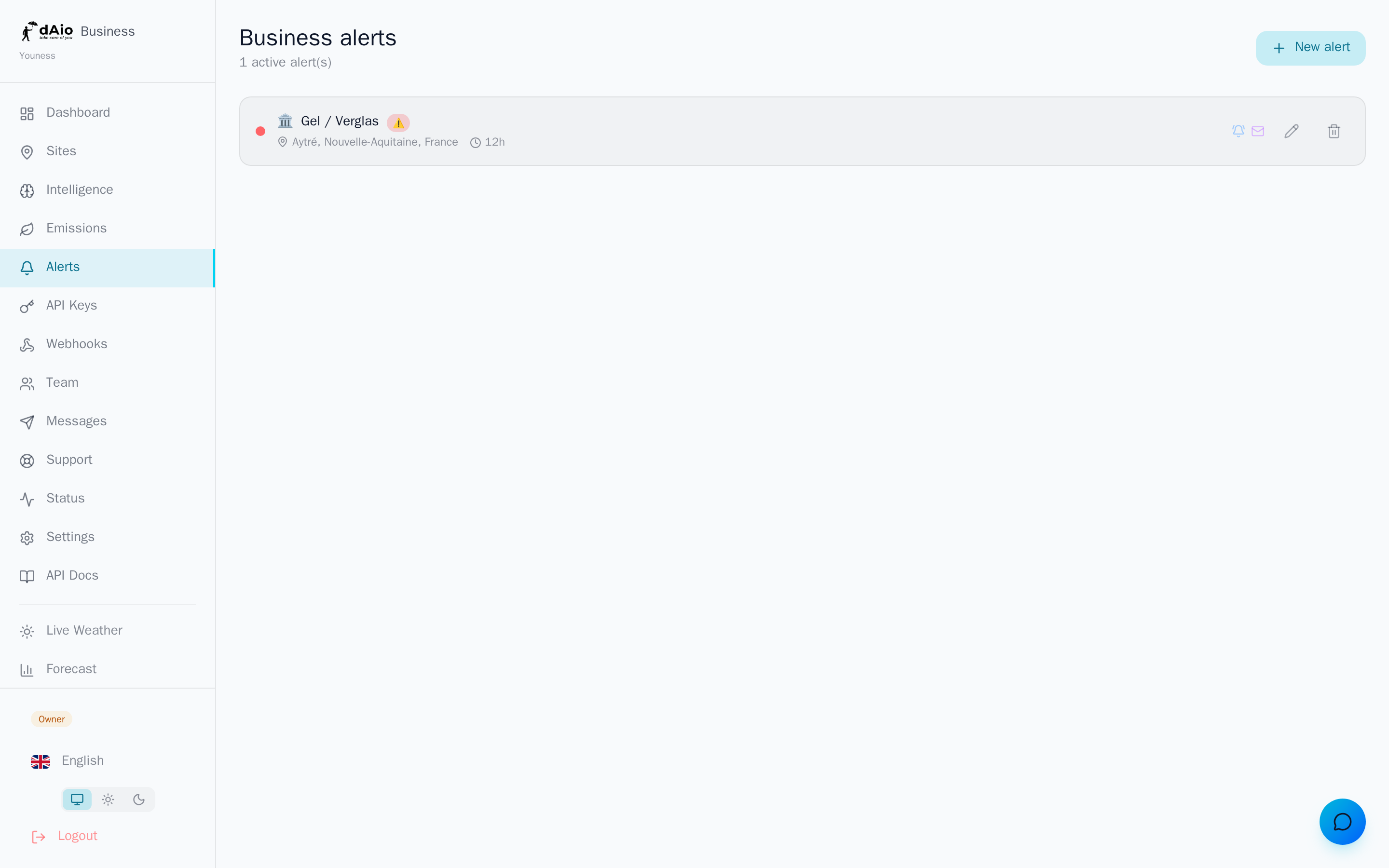
From the list, each alert shows its site, its cooldown, any predictive horizon, its schedule, and the active channels. Two actions are available directly on each row.
Edit an existing alert
Click the pencil icon on an alert to reopen it in the editor. There you can adjust its name, its conditions and thresholds, its site, its channels, its schedule, its cooldown, and its predictive horizon, then save. Changes apply immediately, with no need to recreate the alert.
Enable / disable
An alert is active as soon as it is created. In the list, an active alert is marked by a colored dot (red or green depending on its mode); a disabled alert appears greyed out and no longer triggers notifications, while remaining stored for later reactivation.
Delete
The trash icon removes the alert permanently. A confirmation is requested before deletion.
Warning: deletion is irreversible. If you plan to reuse an alert later, disable it rather than delete it.
Permissions
Creating, editing, and deleting alerts is reserved for members with alert management rights (owner, administrator, or an authorized role). Other members receive notifications from alerts covering the sites assigned to them, without being able to modify them. See Sites for assigning locations.
Best practices
- Cover your critical sites first: start with the locations most exposed to hazards, then expand gradually.
- One clear mode per alert: reserve red for genuine operational risks and green for opportunities to seize, so that every notification calls for an obvious action.
- Calibrate your thresholds: start from a sector template, watch a few triggers, then adjust. A threshold set too low generates noise; one set too high lets the event slip through.
- Leverage the predictive engine: it's anticipation that creates value. A "frost in 48 h" alert is worth far more than a "frost now" one.
- Master scheduling and cooldown: align time windows with your operations and choose a cooldown consistent with the dynamics of the phenomenon being monitored.
- Reserve SMS and WhatsApp for the essentials: these channels consume credits; keep them for truly urgent alerts and let push/email handle the rest.
- Assign a lead per site: they'll receive the relevant alerts without flooding the whole organization.
Tip: once your first alerts are in place, refine them from Customize an alert, or let the AI build the most complex ones for you.