
Emissions — Documents
The document manager is the fastest way to feed your carbon footprint. Instead of manually entering every consumption value, just drop in your energy bills, datasheets and supporting documents: dAio's AI extraction reads the document, identifies the relevant data and pre-fills your equipment and invoices. You save time, you cut down on copy errors, and you keep an auditable record.
Tip: centralize every supporting document of your carbon scope here. A complete, well-organized document set dramatically speeds up third-party verification when you finalize a report.
Add a document
The Documents tab of the Emissions page lists all your files and their extraction status.
- Open Emissions > Documents.
- Select the document type from the dropdown: Datasheet or Invoice. This choice tells the AI which fields to extract.
- Click Upload a PDF (or drag and drop your files).
- The upload starts; the document appears in the list with an extraction status that updates in real time.
You can upload several files at once: each is processed independently.
Accepted formats: PDF, JPG, PNG.
Tip: for the best extraction results, favor clean, uncropped documents. A legible scan or a native PDF yields a far higher extraction confidence than a blurry photo taken at an angle.
Supported document types
| Type | Extracted data |
|---|---|
| Energy bill | kWh consumption, supplier, period, amount |
| Fuel delivery note | Volume, fuel type, date |
| Equipment datasheet | Rated consumption, power, fuel |
| Transport invoice | Distance, transport mode, weight |
| Meter reading | Consumption, dates, site |
| Audit report | Aggregated data, recommendations |
Depending on the type selected at upload, the AI routes the data to the right place: a datasheet creates or completes an equipment, an invoice creates an entry in your invoices.
AI extraction
Automatic extraction runs in three steps:
- Analysis — the AI identifies the document type and locates the key data.
- Extraction — fields are filled in automatically (consumption, dates, amounts, supplier).
- Validation — you review and correct if needed before saving.
Each document shows a status in the list:
| Status | Meaning |
|---|---|
| Processing | The AI is processing the document; wait a few moments. |
| Completed | Extraction succeeded. A confidence percentage is shown. |
| Failed | The document could not be read. Re-upload a cleaner version. |
The confidence score (for example 92%) indicates the estimated reliability of the extraction. Below 80%, always double-check the values reported in the related equipment or invoice.
Warning: AI extraction consumes LLM credits. Check your balance under Settings > Usage before launching a bulk import. A failed document is not charged twice, but each retry consumes credits.
Validated data feeds directly into your equipment or invoices, then is taken into account at the next emissions calculation.
Manage and delete a document
In the list, each document shows its name, type, year and size. The delete button permanently removes the file from storage.
Warning: deleting a document does not remove the data already extracted and saved (the equipment or invoice that was created). However, you lose the corresponding supporting document. Keep your documents as long as the related report is not finalized and archived.
Storage
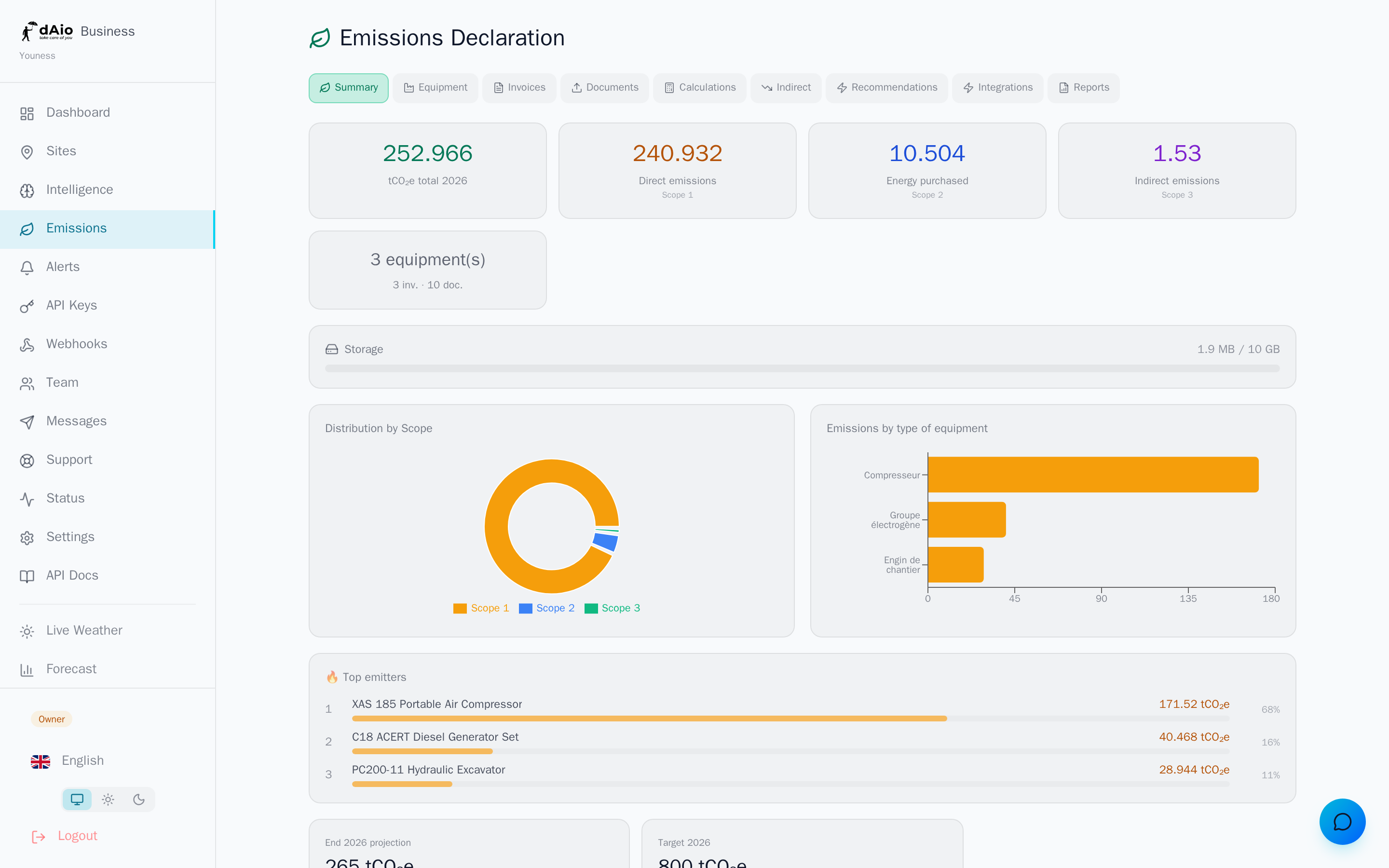
Documents are stored permanently on secure object storage. A storage bar on the Emissions dashboard shows your usage against your plan's quota, with an alert when you near the limit.
| Plan | Indicative quota |
|---|---|
| Solo | 2 GB |
| Team | 10 GB |
| Enterprise | 50 GB |
When the quota is reached, uploads are blocked: delete obsolete files or upgrade to a higher plan. See the Storage section for details on quotas and space management.
Best practices
- Pick the right type at upload (datasheet or invoice): it determines where the extracted data lands.
- Always review low-confidence extractions before validating, especially for amounts and consumption.
- Upload clean files (native PDFs or legible scans) to maximize reliability and save LLM credits.
- Name your files clearly (supplier, period) to find them at a glance in the list.
- Keep your supporting documents until the related report is finalized, to ease any later audit.
- Monitor your storage regularly and clean out documents that no longer serve any report.
Tip: once your documents are uploaded and validated, run an emissions calculation to update your footprint, then generate an official report ready for your regulatory obligations.