
Alerts — AI Creation
AI-powered alert creation is the fastest way to turn a business need into operational monitoring. Describe your intent in plain language — "warn me when wind threatens my site" — and the dAio assistant builds a complete alert for you: conditions, thresholds, schedule, site and channels. You stay in control: everything remains editable before activation.
This approach is ideal when you're not familiar with the technical parameters, when the case is complex (several combined conditions), or simply to save time. For manual or template-based creation, see the alerts overview.
Tip: the more precise your description (location, schedule, type of risk, desired threshold), the more relevant the generated alert will be on the first try.
Create an alert with AI
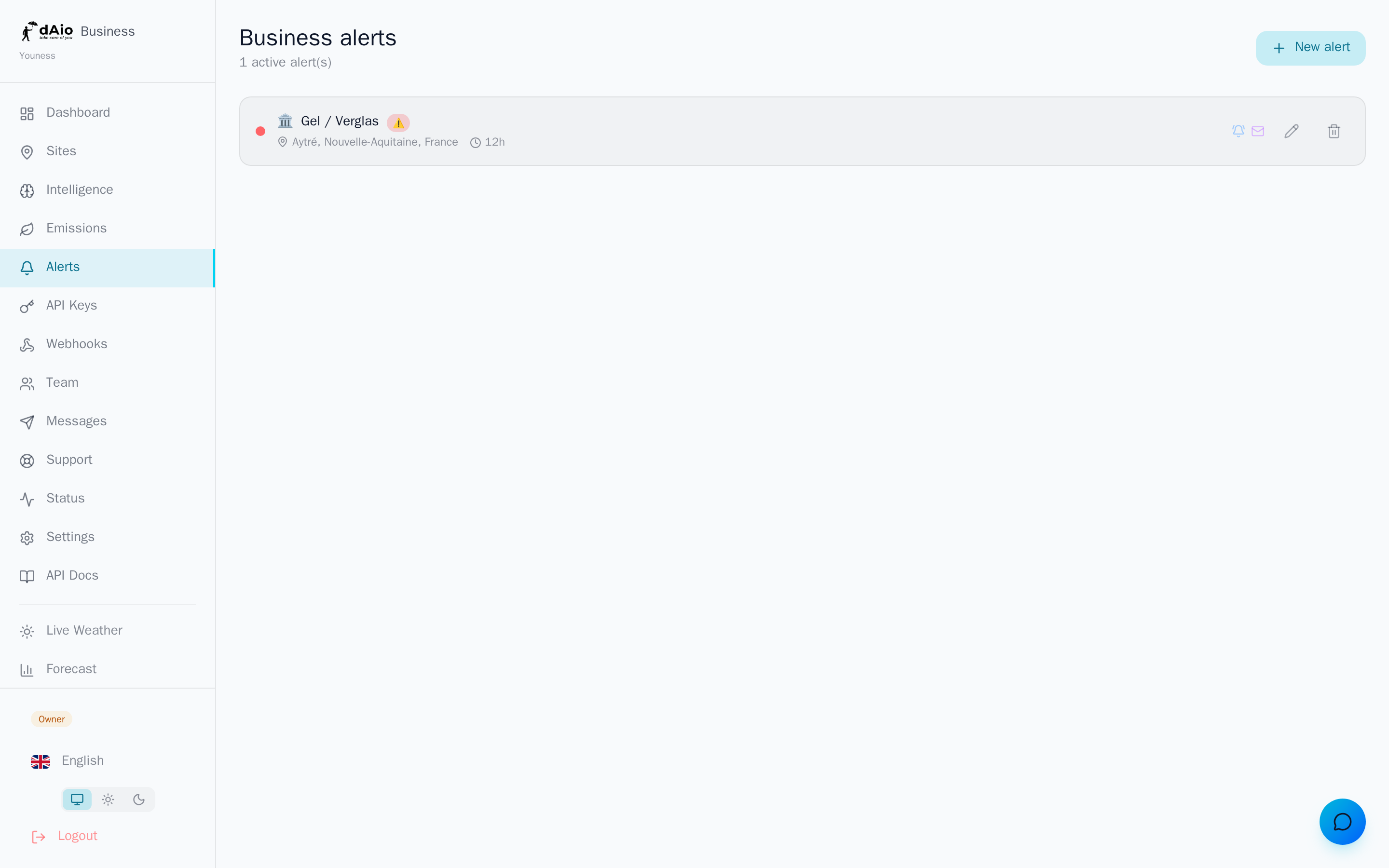
- Open Alerts, then click New alert.
- Browse the templates, then choose Create with AI at the bottom of the screen.
- Describe your need in the text field, in one or more sentences.
- Click Generate alert. The dAio assistant analyzes your request and builds a complete alert.
- Review the proposed alert: type (danger or opportunity), conditions, thresholds.
- Click Customize and activate to open the editor, adjust as needed, then activate.
Warning: only owner and administrator roles can create and manage alerts. Other team members receive alerts for the sites assigned to them, without being able to edit them.
Write an effective prompt
The assistant understands plain language, but a few good habits significantly improve the result.
| Detail to specify | Example |
|---|---|
| The location / site | "on my site in Lyon", "for my warehouses in the North" |
| The type of risk | wind, frost, heavy rain, air quality, heat |
| The threshold | "exceeds 60 km/h", "below 0 °C" |
| The schedule | "during working hours", "between October and April" |
| The lead time | "24 h in advance", "in real time" |
Examples of prompts that work well:
- "Warn me when wind exceeds 60 km/h on my site in Lyon during working hours."
- "Frost alert for my vines in Bordeaux between October and April."
- "Notify me 24 h in advance if heavy rain is forecast for my warehouses."
- "Monitor air quality for our outdoor events."
Tip: one prompt = one intent. For two distinct risks (wind and frost, for example), create two alerts: they will be clearer and easier to fine-tune.
Voice dictation
Rather than typing your request, you can dictate it:
- Click the microphone icon, to the right of the text field.
- Describe your alert out loud.
- Your speech is transcribed automatically into the field.
- Read it over, correct if needed, then generate the alert.
Dictation relies on your browser's speech recognition and works in the languages supported by the interface. If the icon doesn't appear, your browser doesn't offer this feature — type your request instead.
Credit cost
Generating an alert with AI engages the dAio assistant and consumes credits, depending on the complexity of the request:
| Alert type | Indicative credits |
|---|---|
| Simple (1 to 2 conditions) | ~2 credits |
| Complex (3 or more conditions) | ~5 credits |
The estimated cost is shown below the generate button. Credit consumption depends on your subscription; manual or template-based creation costs no credits.
Tip: to save credits on a recurring need, start from an existing alert template and adjust it, or duplicate an alert already created with AI.
Review and adjust before activation
The generated alert is never activated automatically: it opens in the editor, fully editable. Before activating it, check and refine:
- The monitored site — verify that the AI attached the alert to the right location (see Sites).
- The conditions and thresholds — adjust each value, add or remove a condition.
- The time range — limit the alert to the relevant days and hours.
- The lead time — choose real-time or predictive monitoring (up to 7 days).
- The channels — enable Push, Email, SMS or WhatsApp depending on urgency.
Warning: always review the proposed alert before activating it. The assistant interprets your request as best it can, but may misread an ambiguous threshold or a location with a common name. A poorly configured alert generates noise — or, worse, misses the event you wanted to track.
Best practices
- Be explicit about the threshold: "strong wind" is ambiguous, "wind above 60 km/h" is not.
- Name the site precisely: if several locations have similar names, state the city and country to remove any ambiguity.
- One alert per risk: don't try to cover everything in a single prompt; separate alerts stay easier to tune and interpret.
- Always review the generation before activation, especially for critical alerts.
- Favor templates for standard needs and reserve AI for specific or complex cases — you'll save credits.
- Iterate: if the result isn't right, rephrase your request rather than fixing everything by hand.
Tip: once your first alerts are in place, see the alerts overview to organize them, and assign each site to a contact in Team so the right people receive the right notifications.