
Alerts — Custom Builder
Alert templates cover most business needs, but some situations call for logic specific to your operations. The dAio custom alert builder lets you compose your own rules by freely combining several environmental conditions: you define the monitored parameters, the thresholds, the operators and the logic that links them. The result is monitoring tailored exactly to your operational constraints.
It's the go-to tool whenever no existing template matches your use case precisely.
Tip: if you'd rather describe your need in plain language than assemble the conditions by hand, use the AI-assisted builder. It generates an alert that you can then refine in this same builder.
Create a custom alert
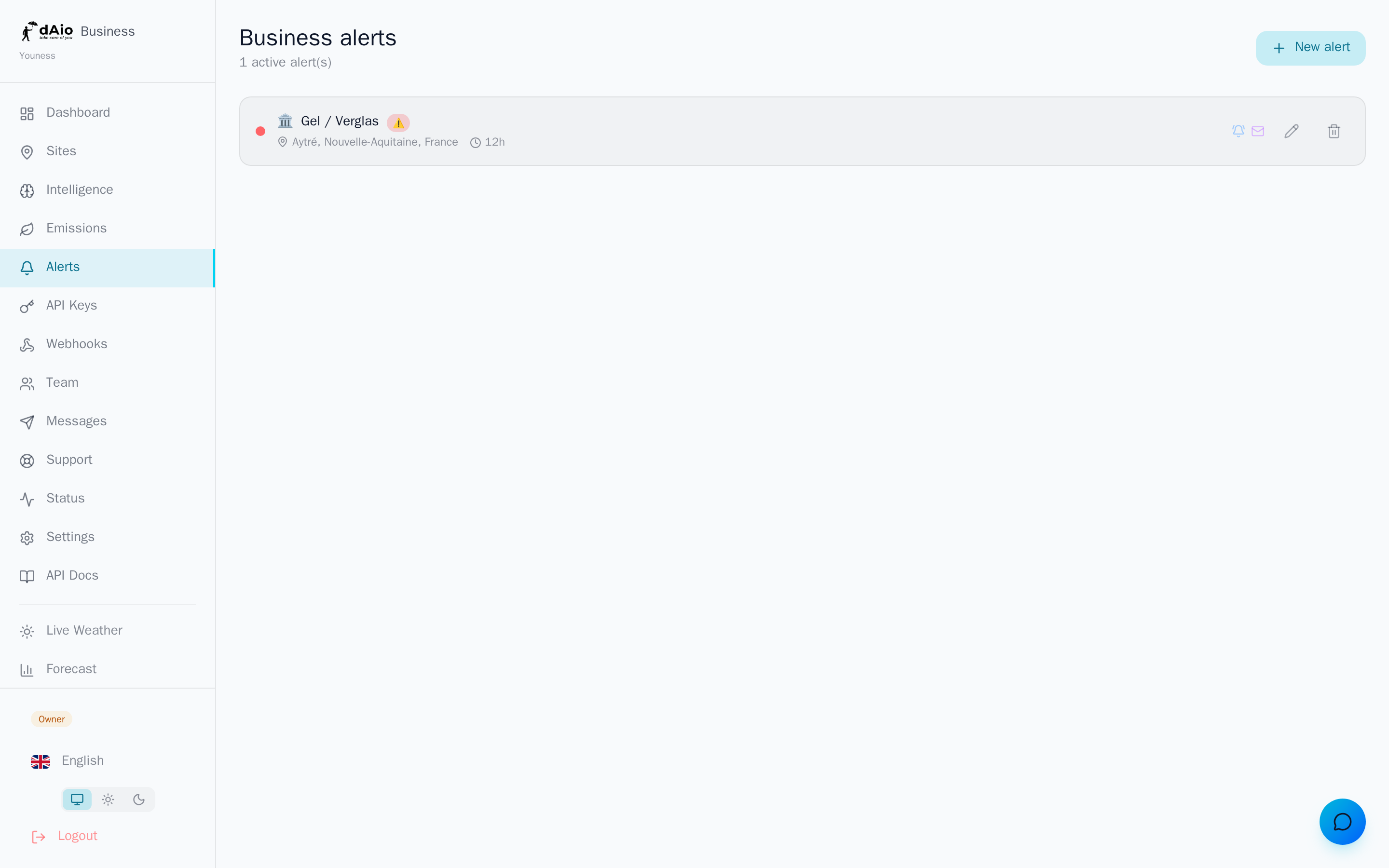
- Open the Alerts page from the menu, then click New alert.
- At the bottom of the template list, click Create custom.
- Choose the logic that links your conditions (AND / OR).
- Add your conditions one by one (source, parameter, operator, value).
- Click Configure alert to move on to the settings.
- Set the monitored site, the time range, the predictive horizon, the cooldown between alerts and the notification channels.
- Click Activate alert.
Warning: only the owner and administrator roles, along with members who hold the alert-management permission, can create or edit alerts. See team management.
AND / OR logic
All the conditions in an alert are linked by a single logical operator:
- AND (all): the alert triggers only when all conditions are met simultaneously.
- OR (at least one): the alert triggers as soon as at least one condition is met.
Choose AND to target a precise situation (few alerts, highly relevant) and OR to cover several distinct risks with a single alert (more triggers).
AND  → Wind ≥ 60 km/h  AND  Precipitation ≥ 5 mm
OR → Temperature ≤ -5°C OR Wind ≥ 80 km/hTip: start with AND logic and no more than two conditions. You'll avoid cascading alerts and keep notifications that are genuinely actionable for your teams.
Add a condition
Each condition is built in four steps:
- Source — the data family being monitored (weather, air quality, etc.).
- Parameter — the precise measurement within that source.
- Operator — the comparison applied to the threshold.
- Value — the trigger threshold you enter.
Click + to add the condition to the list. You can combine up to 8 conditions per alert and remove one at any time using the delete icon.
Available parameters
| Parameter | Description |
|---|---|
| Temperature | Air temperature, in °C |
| Apparent temperature | Perceived temperature (wind + humidity), in °C |
| Wind speed | Mean wind at 10 m, in km/h |
| Wind gusts | Maximum gusts at 10 m, in km/h |
| Precipitation | Precipitation total, in mm |
| Precipitation probability | Chance of precipitation, in % |
| Relative humidity | Air humidity at 2 m, in % |
| UV index | Ultraviolet index (0 to 11+) |
| Visibility | Visibility distance, in m |
| Cloud cover | Share of sky covered, in % |
| Weather code | General weather condition (coded) |
| Surface pressure | Atmospheric pressure, in hPa |
Tip: the exact list of sources and parameters is loaded dynamically based on your industry. Additional environmental sources (air quality, pollen) may appear depending on your subscription.
Operators
| Operator | Symbol | Example |
|---|---|---|
| Greater than or equal | ≥ | Wind ≥ 80 km/h |
| Less than or equal | ≤ | Temperature ≤ 0°C |
| Strictly greater than | > | UV index > 8 |
| Strictly less than | < | Visibility < 200 m |
| Equal | = | Weather code = thunderstorm |
| Not equal | ≠ | Cloud cover ≠ 100% |
| Between | ↔ | Temperature between 0°C and 5°C |
Alert settings
Once your conditions are defined, the configuration step uses the same settings as template customization:
| Setting | Purpose |
|---|---|
| Monitored site | The location the alert applies to. See Sites. |
| Time range | Limits triggers to certain hours and certain days of the week. |
| Predictive horizon | Triggers the alert ahead of time, on the forecast (from 6 h to 7 days). A reliability score is shown: the further ahead the horizon, the lower the reliability. |
| Cooldown between alerts | Minimum time between two notifications (2, 6, 12, 24 or 48 h) to avoid spam. |
| Notification channels | Push, email, SMS and WhatsApp. |
Warning: the SMS and WhatsApp channels require a verified phone number on the recipient's account. Otherwise, only push and email notifications will be sent.
Custom alert examples
| Business need | Logic | Conditions |
|---|---|---|
| Crane shutdown on site | AND | Wind ≥ 50 km/h AND Gusts ≥ 70 km/h |
| Crop frost risk | OR | Temperature ≤ 0°C OR Apparent temperature ≤ -2°C |
| Spraying postponement | AND | Wind speed ≥ 19 km/h AND Precipitation probability ≥ 60% |
| Event comfort | AND | Temperature between 18°C and 28°C AND Precipitation probability < 20% |
Best practices
- One alert, one goal: create one alert per operational decision rather than a catch-all alert that's hard to interpret.
- Calibrate your thresholds against field experience: a threshold that's too low generates noise, one that's too high misses the risk.
- Favour AND logic to reduce false positives, and reserve OR for cases where several distinct causes warrant the same action.
- Enable the predictive horizon for decisions that require anticipation (planning, logistics), and stay in real time for emergency shutdowns.
- Assign the right site and the right point of contact so the alert reaches the person able to act. See Sites and Team.
- Check the behaviour after activation: adjust the thresholds if the alert triggers too often or too rarely.
Tip: find the overview of all your alerts, their status and their history in the alerts overview.