
Team — Seat management
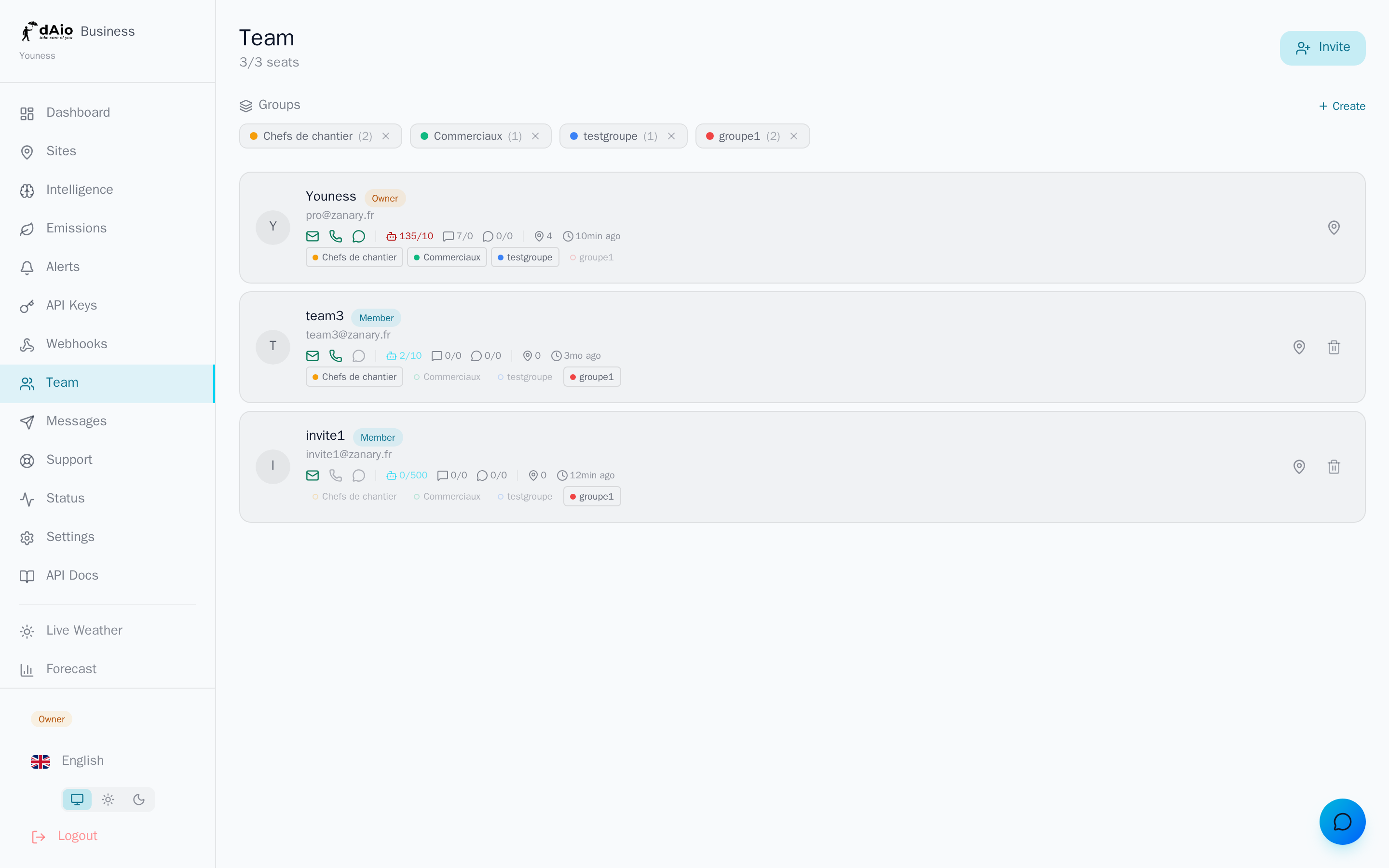
A seat is a paid place within your dAio Business organization: every active member or pending invitation occupies one seat. Seat management lets you control the exact size of your team and its cost precisely, so you never pay for unused places.
dAio continuously compares the number of occupied seats against your plan's capacity. When you invite a new collaborator, the platform checks that a seat is available and, if needed, offers to add one before proceeding.
Tip: size your seats as tightly as possible. You can add more at any time, in seconds, whenever a need arises — there's no point over-provisioning "just in case".
Understanding seats
| Concept | Description |
|---|---|
| Seat | A paid place in the organization. Occupied by an active member or a pending invitation. |
| Occupied seats | The sum of active members and invitations not yet accepted. |
| Included seats | Places covered by your plan's base price. |
| Extra seats | Places added beyond the included seats, billed on top. |
The header bar of the Team page always shows the usage ratio (for example 3 / 5), so you can track remaining places at a glance.
Seats per plan
| Plan | Included seats | Extra seats |
|---|---|---|
| Solo | 1 | Not available |
| Team | 3 | Billed per seat, per month |
| Enterprise | Custom | Defined in the contract |
- Included seats: covered by your plan's base price.
- Extra seats: billed on top, prorated to your billing cycle.
Tip: the Team plan is built to grow with you. Start with the included seats, then add places as you hire.
Adding seats
You can add seats in two ways.
Automatically, when inviting. If you invite a member while all your places are occupied, dAio offers to add an extra seat. The per-seat price is shown: confirm to continue the invitation, and the place is added immediately.
Manually, from the subscription:
- Go to Settings > Subscription.
- In the Seats section, click Add seats.
- Enter the number of seats you want.
- Confirm the additional amount.
- The seats are available immediately.
The amount is calculated prorated: if you add a seat mid-cycle, you only pay for the remaining fraction of the current month.
Tip: invite your collaborators directly from the Team page. dAio handles adding seats for you when needed, with no detour through the settings.
Reducing seats
- Go to Settings > Subscription > Seats.
- Click Reduce seats.
- The reduction takes effect at the next billing cycle.
Warning: you cannot go below the number of active members. First remove the surplus members from the Team page, then adjust your seat count.
Stripe billing
Extra seats appear as a separate line on your Stripe invoice, distinct from the base subscription:
- dAio Business Team — base subscription
- Extra seats (×N) — prorated amount
You'll find the full breakdown and your invoice history in Settings > Subscription.
Tip: keep your Stripe invoices for your accounting. Each seat addition or removal is tracked there with its effective date.
Separate business and personal accounts
A seat can only be occupied by an email address dedicated to the business space. If you invite an address already linked to a personal dAio account, the invitation is refused: the two spaces are watertight. The person must use a different email address to join the organization.
Enterprise limit
The Enterprise plan imposes no technical seat limit. The number of places is defined in your contract. To adjust your volume, contact your account manager.
Best practices
- Anticipate your hires: add seats just before inviting, for immediate availability.
- Clean up regularly: remove departed members to free up seats and reduce your extra seats at the next cycle.
- Distinguish roles: a viewer occupies a seat just like an administrator — reserve invitations for people who genuinely need them.
- Centralize billing: track your seats and invoices from Settings > Subscription to keep costs under control.
- Use professional addresses from the invitation stage, to avoid any conflict with possible personal accounts.
Tip: once your seats are in place, structure your organization with members and roles and site assignment so each person only accesses their own scope.