
Settings — Other Settings
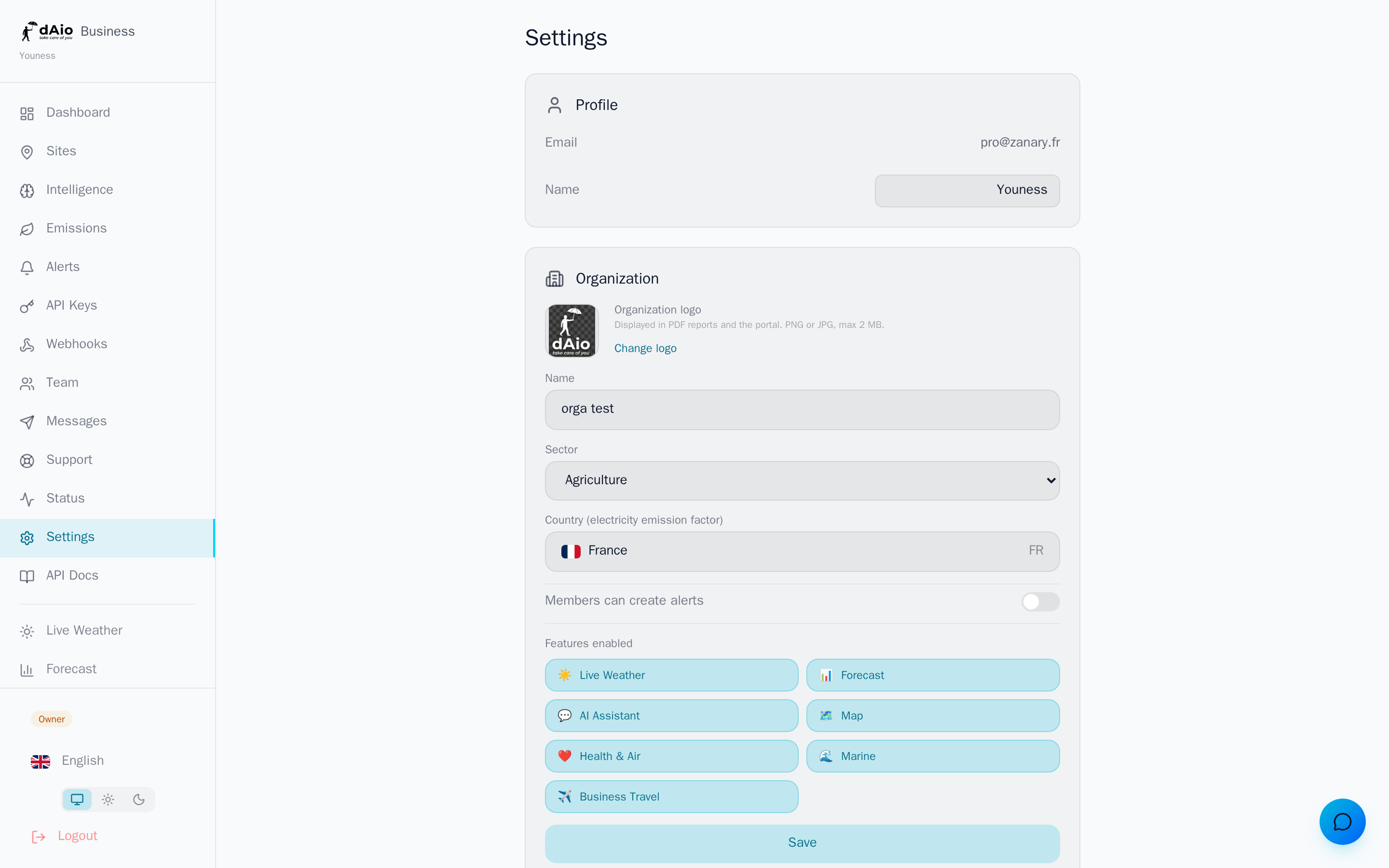
The Settings page centralizes everything that personalizes your dAio experience: your profile, the display language and units, the interface theme, notifications, your usage tracking, and the management of your personal data. Set up once, it ensures every team member works in the format, language, and alert level that suits them.
This page covers the cross-cutting settings. Organization and subscription management, team members, and API keys and webhooks are described in their dedicated sections.
Tip: preferences are specific to each user. Every member of your team sets their own language, units, and theme without affecting the others.
Profile
The Profile section displays your email address (login identifier, not editable here) and your full name. Edit the name in the provided field, then save: this name appears in reports, activity logs, and to other team members.
| Field | Description |
|---|---|
| Your login identifier. Displayed read-only. | |
| Name | Name shown in the app, reports, and history. Editable and saveable at any time. |
Language and units
The Language & Units section adapts the display to your business and region:
- Interface language: 20 languages available. dAio translates the entire interface, city names, and assistant messages.
- Temperature: Celsius (°C) or Fahrenheit (°F).
- Wind: km/h, mph, m/s, or knots.
Tip: choose knots if your teams work in a marine environment, and mph for English-speaking contacts. Units apply everywhere: forecasts, alerts, and dashboards.
Appearance
The Appearance section controls the interface theme. Three modes are available:
| Mode | Behavior |
|---|---|
| Auto | Follows your operating system preferences (light by day, dark by night). |
| Light | Forces the light theme permanently. |
| Dark | Forces the dark theme permanently. |
Tip: Auto mode is recommended for visual comfort: the interface automatically aligns with the time and lighting of your workspace.
Notifications
The Notifications section summarizes the status of your notification channels:
- Weather alerts: reception status of your configured alerts.
- Daily report: summary sent automatically each day, which can be enabled or disabled.
The detail of channels (push, email, SMS, WhatsApp) and thresholds is set at the level of each alert.
Phone and WhatsApp
To receive notifications by SMS and WhatsApp, enter and verify your number:
- In the Phone section, enter your number with the international dialing code.
- Confirm using the verification code received by SMS.
- In the WhatsApp section, connect your account to enable this channel.
Caution: an unverified number receives no SMS or WhatsApp notifications. Verify it before setting up alerts on these channels.
Usage and quotas
The Usage & Quotas section displays your consumption in real time against the limits of your plan:
| Indicator | Description |
|---|---|
| AI credits | Assistant requests consumed during the month. |
| SMS | SMS messages sent / monthly quota. |
| WhatsApp messages sent / monthly quota. | |
| API keys | Active keys / number allowed by the plan. |
| Webhooks | Active webhooks / number allowed by the plan. |
| Storage | Space used / total quota, with a progress bar. |
The storage bar turns orange at 80% and red at 95% of the quota. Beyond that, new file uploads (logos, exports) may be blocked.
Tip: quotas are shared across the organization. Monitor this page at month-end to anticipate an overrun and, if needed, buy credits or move to a higher plan.
Help and support
The Help & Support section gathers useful entry points:
- Help center: the documentation you are reading, in your language.
- Support center: to contact the dAio team.
- API documentation: technical reference for your integrations.
GDPR export
In compliance with the GDPR, you can export all your data at any time:
- In the Data & Account section, click Export my data.
- A JSON file is generated and downloaded immediately, named
daio-pro-export-YYYY-MM-DD.json.
The file contains your profile, your sites, your alerts, your emissions, your messages, and your activity logs.
Account deletion
To permanently delete your account:
- In the Data & Account section, click Delete my account.
- Confirm by entering your email address in the provided field.
- Confirm the deletion.
Caution: deletion is irreversible. All your data (profile, sites, alerts, reports, messages) is erased. If you own the organization, transfer ownership first or notify your team: its members will lose their access.
Logout
The Logout button, at the bottom of the page, ends your session on the current device. Your data and the organization's data remain intact; simply log back in with your email and password.
Best practices
- Set language and units on first login: each team member then works in their natural format, with no ambiguity about temperatures or wind speeds.
- Verify your phone number before relying on SMS or WhatsApp alerts.
- Monitor the Usage page at month-end to avoid any quota overrun that would interrupt your alerts or messages.
- Export your data regularly if your internal policy requires it: the GDPR export is instant and complete.
- Before deleting an owner account, transfer ownership of the organization so you don't block your team.
Tip: once your preferences are in place, explore subscription management and organization to adapt dAio to the size and operation of your structure.